 Hi Boox Popular Magazine 2025
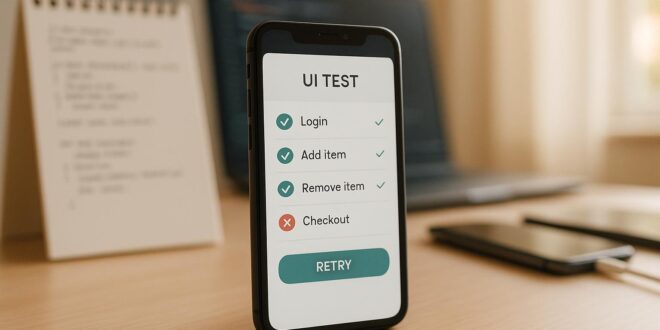
UI bugs are among the most annoying problems for many developers. Even experienced and highly skilled developers can encounter UI bugs, as they can arise at various stages of development and may not always be easy to detect.
A UI bug can affect how a website or application looks and functions. These problems can affect the user experience and may also delay a software release. Visual regression testing tools are used to identify unwanted changes in the interface during testing. Finding and fixing UI bugs is crucial. So, let’s get into this.
What Are UI Bugs?

UI (User Interface) bugs are visual or interactive flaws in a digital product in which the implemented application does not match the approved design specifications or fails to function properly for the user.
UI bugs can be grouped into visual and functional categories. Visual bugs affect how the interface appears to users. Functional UI bugs affect how interface elements respond to user actions. Some issues can also affect both appearance and interaction.
What Are the Common UI Bugs and How Can You Avoid Them?
The following are some of the most common UI bugs and ways to avoid them:
Form Validation Bugs
Form validation bugs occur when a web form fails to properly validate user input. This may let users submit incomplete or invalid data without receiving an appropriate message.
These issues can result from incorrect validation rules or poor error handling. Such issues can affect data quality, security, and usability.
Prevention: Test every input field with different data types. Include valid values, invalid values, empty fields, and edge cases.
Check that the form accepts correct data and shows appropriate errors for invalid data. Review error messages during usability testing to make sure users can understand them. Fields with errors should also be clearly marked.
Spacing and Alignment Problems

Spacing and alignment bugs occur when padding, margins, or gaps in the implemented UI do not match the design specification.
These issues often appear between Figma designs and CSS code. They can be time-consuming to fix because developers may need to measure the distance between multiple elements. Nested containers can make the issue harder to trace because padding can accumulate across multiple levels.
Prevention: Adopt an 8px spacing scale with named design tokens. Use a fixed set of values: 8px, 16px, 24px, 32px, and 40px. Define corresponding tokens such as space-xs, space-sm, space-md, space-lg, and space-xl and use them through CSS custom properties.
Linting rules can also check for spacing values that do not follow the defined system. For layouts that require consistent spacing between children, use the CSS gap property where possible.
Color and Visual Hierarchy Mistakes
Color and visual hierarchy bugs occur when the colors used in the product do not match the approved design. Inconsistent colors can affect brand consistency and make important elements harder to distinguish.
Poor contrast can also create accessibility problems. Under WCAG 2.2 Level AA, normal-sized text must have a minimum contrast ratio of 4.5:1 against its background. Large text requires a minimum ratio of 3:1.
Prevention: Use color tokens with semantic names such as color-text-primary, color-bg-surface, and color-border-default. Run automated contrast checks as part of CI testing.
Tools such as axe-core can flag contrast issues before the code reaches staging. Semantic tokens also reduce the need to use raw hex values throughout the code.
Broken Links and Navigation

Broken links and navigation problems happen when users are unable to access the page or feature that they expect. A link might result in a 404 error.
A button might not open the right page. A menu item might also direct to the incorrect place. Such issues can disrupt navigation and make it hard for users to go through a website or application.
Prevention: It is necessary to regularly check the links and navigation paths in the web application.
Tools like the W3C Link Checker and the Online Broken Link Checker can scan links and detect any that are not working. Additionally, manual checks can be performed on buttons, menus, and other navigation items.
Interactive State Failures
Interactive state failures occur when UI components are missing states or display them inconsistently.
Focus indicators deserve special attention because WCAG 2.2 Success Criterion 2.4.7 requires visible focus for keyboard navigation. A missing focus ring can be both a visual defect and an accessibility violation.
Tools such as axe DevTools can detect related issues. Designers often specify the default state and may also show the hover state. The remaining states may not be documented. Developers then implement what is provided and may leave the other states to browser defaults.
Prevention: Create a state matrix for each component that covers default, hover, focus, active, disabled, loading, error, empty, and skeleton states. Not every component needs all of these states.
Each component should clearly specify which states it supports and how each state should appear. Include this information in the design handoff as a required part of the specification.
Cross-Browser Incompatibility
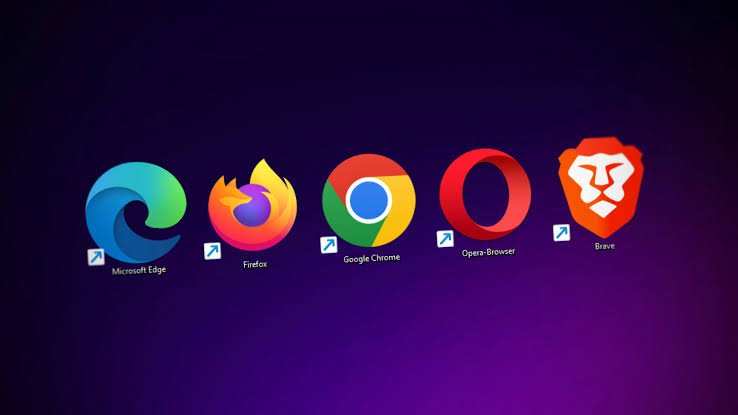
Cross-browser incompatibility occurs when a website or application looks or works differently across different browsers. Users might see changes in the layout, the styling, or the features. These differences can occur because browsers may interpret and run code differently.
They may also handle CSS styles and JavaScript functions differently. Users visiting the same website through different browsers may therefore notice visual differences or find that certain features do not work correctly.
Prevention: Cross-browser testing can help detect compatibility issues as the website is being developed. If a website is tested across a variety of browsers early on, teams can spot and correct problems before the application reaches later stages. As a result, the number of browser-related problems discovered after release can be reduced.
It can take a long time to test across multiple browsers and operating systems when done manually. With a cloud-based platform like TestMu AI, you can get access to various browsers and environments from a single location.
TestMu AI is the world’s first full-stack Agentic AI Quality Engineering platform that supports manual and automated testing across 10,000+ real devices and 3,000+ browser-and-OS combinations.
The platform supports visual regression testing and provides cloud-based test infrastructure for different testing needs.
Some of the key features of leveraging TestMu AI are:
- It enables comprehensive cross-platform and cross-browser testing, helping verify consistent functionality across different platforms for your website or app.
- It removes the need to maintain physical testing infrastructure. It provides a scalable cloud environment that can reduce hardware setup and maintenance costs.
- It integrates with popular automation frameworks like Selenium, Playwright, and Appium. This lets teams use their existing framework knowledge and move their tests to the cloud with ease.
- It uses SmartUI, an AI-native visual testing tool, to automatically compare screenshots across browsers and devices and highlight visual differences. This can make visual regression testing more efficient.
- It provides HyperExecute, an AI-native end-to-end test orchestration platform that can speed up automation testing. It goes beyond cloud-based test execution by providing intelligent features to manage and optimize the testing process.
Now that we have covered the common UI bugs that QA teams may encounter, the next section covers the UI bug workflow.
UI Bug Workflow: How Do Teams Detect, Prioritize, and Manage UI Bugs?
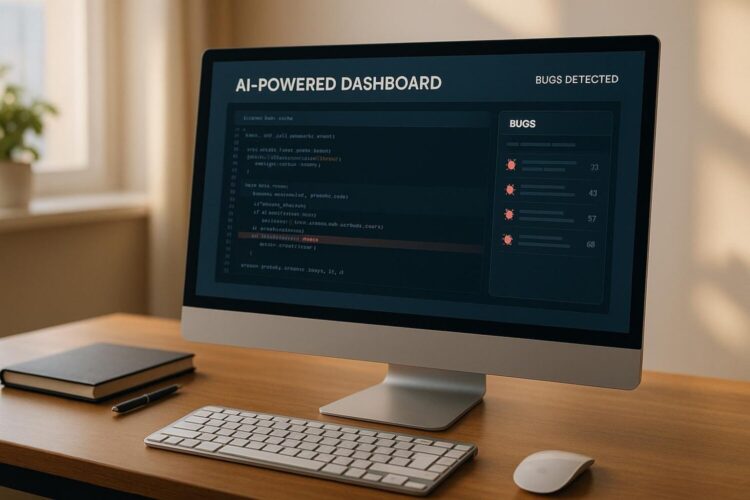
A repeatable process supported by a UI bug workflow helps teams find interface problems, decide which ones matter most, and move them forward to be fixed. Without a workflow, bugs get recorded in different ways.
Some bugs are ignored; others get fixed more than once. Testers waste time trying to find details that should already be connected to the bug report. With a defined workflow, QA, developers, and product owners can track the bug’s details, priority, status, and ownership at each stage. This keeps the information connected from detection through resolution.
The following are the main stages teams typically follow when handling UI bugs:
- Detection: UI bugs can be found through manual testing, automated UI testing, visual regression testing, and user feedback. Manual testing can reveal usability and visual problems that automated checks may miss, while automated visual checks can compare interfaces across builds and testing environments.
- Recording UI Bugs Clearly: Every detected UI bug should have clear reproduction details. Include the environment, browser, device, screen size, reproduction steps, expected result, actual result, and supporting screenshots or recordings.
- Assessing Bug Severity and Priority: Not every UI bug needs the same level of attention. Teams should assess the impact of each issue and decide when to fix it. Severity refers to the effect of the bug. Priority determines which bugs should be addressed first.
- Tracking: After triage, the bug is assigned to the developer or team for the affected component. It then moves through a tracking system with statuses that give the team visibility into its current state and who owns it.
- Fixing and Code Review: The assigned developer investigates the cause. Implements the fix. The change can then go through code review before it reaches the testing stage. This gives the team a chance to review whether the change addresses the problem.
- Retesting and Regression Coverage: After developers provide a fix, QA retests the original scenario. The team should also run regression tests on related areas to check that existing functionality still works correctly. If the bug persists, it moves back to development for another fix.
What Are the Best Practices for Handling UI Bugs?

Here are some best ways you can manage UI bugs and keep them from affecting users:
- Prioritize Critical User Flows: Focus on key actions like login, payments, or checkout. Testing these areas first helps find UI bugs that could hurt parts of the application.
- Automate Repetitive Tasks: Use tools like TestMu AI to run repeated tests on many features. This reduces effort and keeps consistent coverage for stable features. It also helps spot UI bugs.
- Perform Cross-Browser and Device Testing: Check the application on Chrome, Firefox, and other browsers and on desktops, tablets, and phones. This finds compatibility problems that could hide UI bugs.
- Simulate Real-World Scenarios: Build test cases that mimic actions, like filling forms, clicking buttons, logging in, and navigating pages. This shows usability and functional problems that happen during use and may expose UI bugs.
- Keep Tests Updated: Review and update test cases whenever the UI changes. Updated scripts match the interface and catch UI bugs introduced by new changes.
Conclusion
UI bugs can affect both how an application looks and how users interact with it. By focusing on key user flows, automating repetitive testing tasks, and testing the application across browsers and devices, teams can catch UI issues before they reach users. Whether testing is performed manually or with an automated solution, proper testing ensures a better experience.
Following best practices and using platforms such as TestMu AI with appropriate test scenarios can give teams better coverage and help applications meet user expectations.