 Hi Boox Popular Magazine 2025

A Mac that once felt instant can gradually begin to feel less responsive. Applications take a little longer to open, browser tabs become heavier, the spinning beach ball appears more often and tasks that used to happen without thought suddenly seem to require patience. It is easy to assume the machine is simply getting old, but age on its own is rarely the full explanation. In many cases, performance declines because several small factors have built up over time, and some of them can be fixed without replacing the computer.
Low Storage Space Can Affect Mac Performance
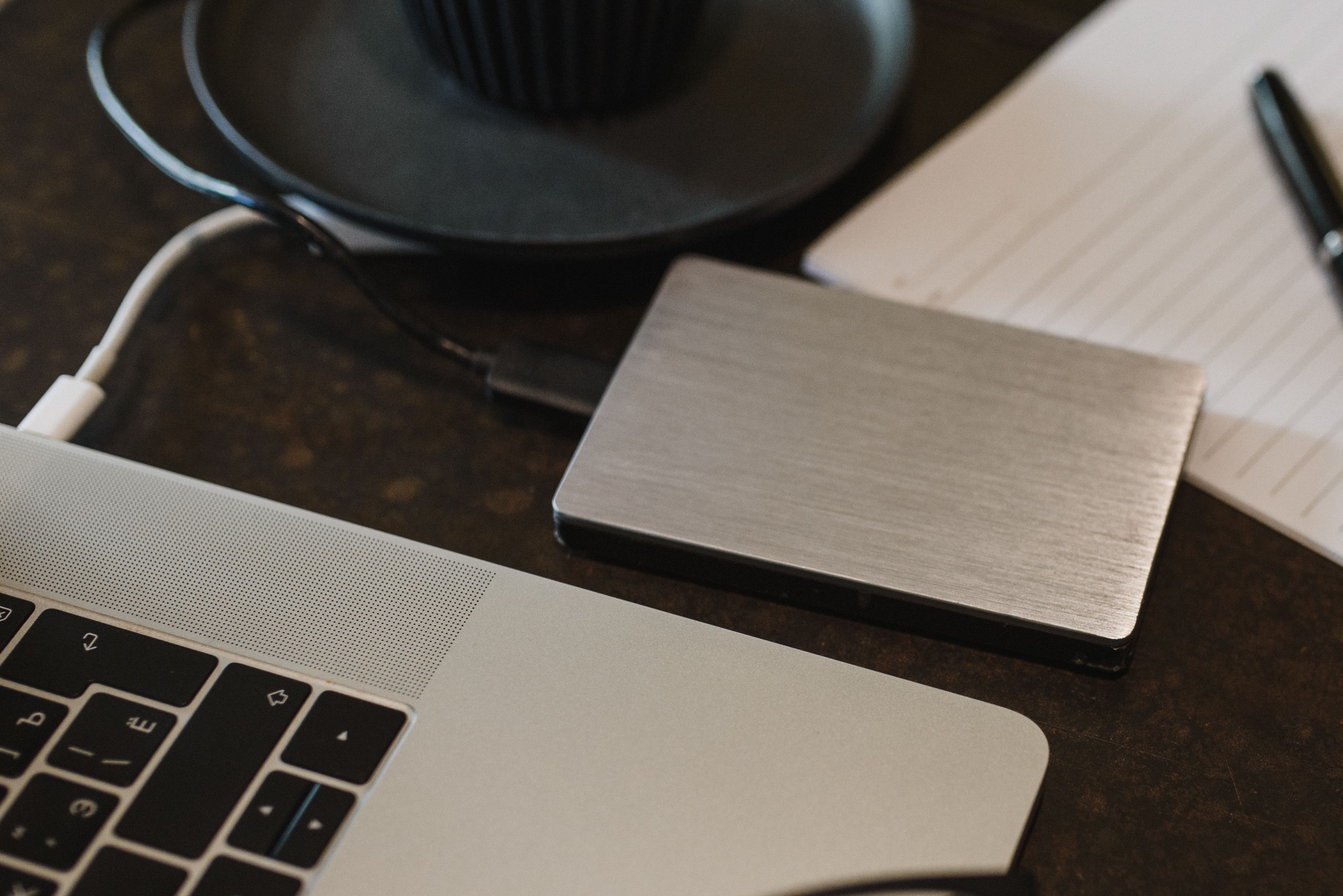
Moving large files to external storage can ease pressure on a Mac’s internal drive.
Storage is one of the first places to look. Macs need free space not only for files but also for temporary data, application caches, updates and virtual memory. When the internal drive becomes nearly full, macOS has less room to move things around efficiently. This can make the machine feel slower even if the processor and memory are still perfectly capable. A Mac with only a few gigabytes of free space may struggle in situations where the same machine with plenty of spare capacity would feel much more responsive.
That is why deleting old downloads, unused applications and large files can sometimes produce a more noticeable improvement than people expect. Photo libraries, video projects, old device backups and forgotten installers can consume huge amounts of space without being obvious. Checking storage properly rather than simply glancing at the Documents folder can reveal where the space has gone. Moving large archives to external storage or the cloud can also help if the internal drive is under constant pressure.
Memory Pressure and Excessive RAM Usage
Memory is another major factor, particularly as software becomes more demanding over time. A machine that felt comfortable with 8GB of RAM several years ago may now be asked to run a browser with dozens of tabs, Teams or Zoom, cloud storage software, messaging applications and several background services simultaneously. None of those tasks may be especially demanding on its own, but together they can push the system into heavier memory pressure.
When physical memory runs low, macOS uses part of the internal storage as swap space. Modern SSDs are fast enough that this can happen without dramatic slowdowns, but the system still becomes less efficient than it would be with more RAM available. If the Mac is constantly juggling data between memory and storage, heavy multitasking can begin to feel less smooth even though there is nothing actually broken. Apple’s guide to checking memory pressure in Activity Monitor explains how to tell whether memory is being used efficiently.
Background Processes and Browser Activity
Background processes can add to the feeling of sluggishness. Macs regularly perform tasks that users barely notice, including indexing files for Spotlight, syncing cloud storage, analysing photos, checking for updates and backing up data. These processes are useful, but when several happen at once they can consume processor time, storage activity and network bandwidth.
This is especially noticeable after a major macOS update, when Spotlight may need to re-index large parts of the drive and Photos may perform additional analysis in the background. The Mac can feel unusually busy for a while, with fans running more often or battery life appearing worse. In many cases, performance settles once those background jobs are complete.
Browser behaviour deserves attention too. Modern websites can be surprisingly demanding, particularly pages with video, advertising, real-time dashboards or complex web applications. Keeping large numbers of tabs open for days at a time can consume significant memory, especially if several are actively refreshing. Users often blame the Mac itself when the real problem is a browser session that has grown out of control.
Restarting the browser, closing unused tabs or trying a different browser can sometimes reveal whether the slowdown is system-wide or confined to one application. The same applies to extensions. Poorly designed browser extensions can increase memory and processor usage without making it obvious why performance has changed.
Battery Health, Overheating and Thermal Throttling
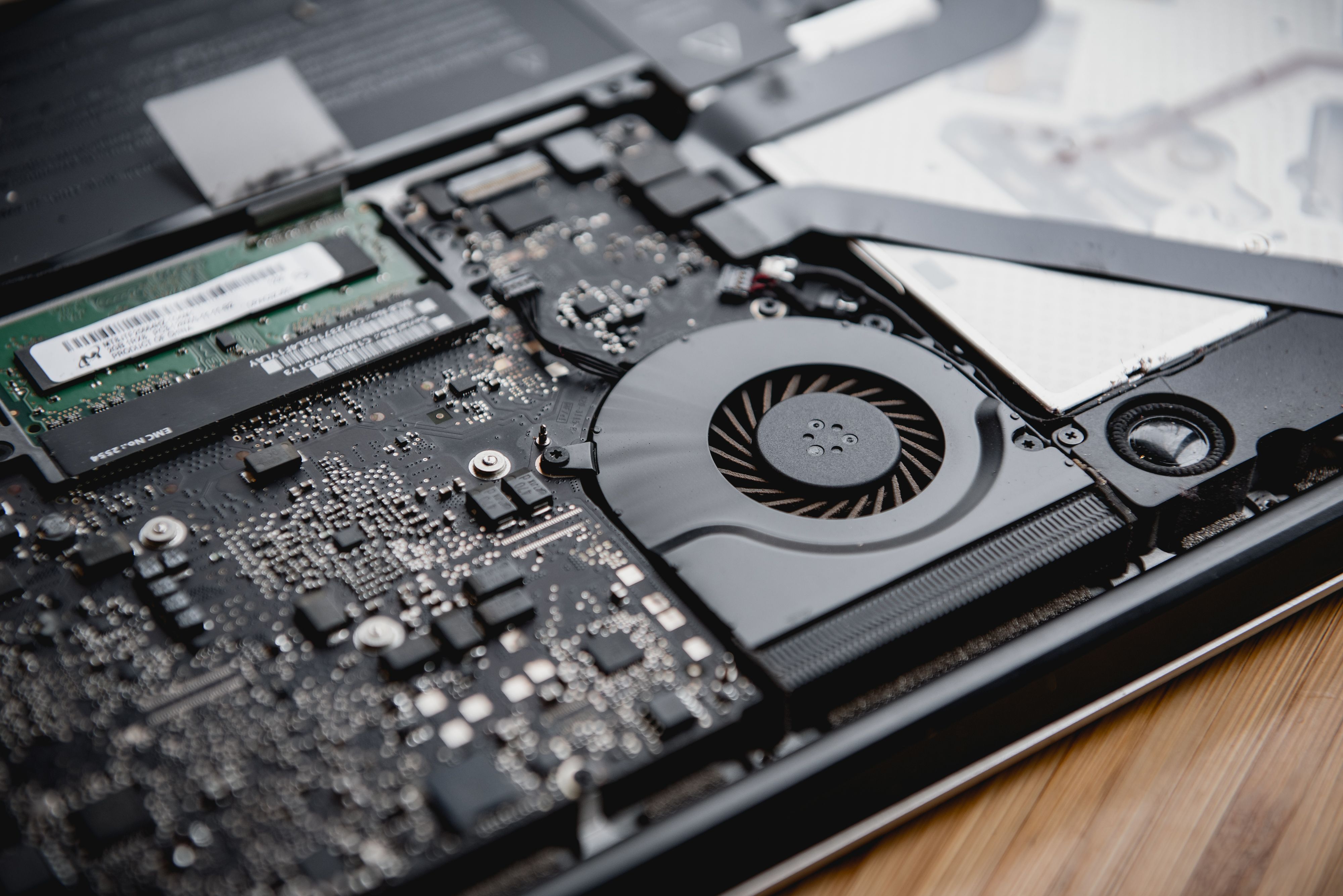
Heat buildup can prompt a Mac to reduce processor speed to protect its components.
Battery condition can influence performance as well, although usually in a less direct way. An ageing battery may not simply run down faster; in some cases, power management can change how the system behaves to maintain stability. Older machines with heavily degraded batteries may also spend more time connected to power, which can increase heat in certain working environments.
Heat itself is important because processors are designed to reduce performance when temperatures become too high. This is known as thermal throttling. Dust, blocked vents, heavy workloads and sustained use in warm environments can all cause temperatures to rise. On older Intel-based Macs, excessive fan activity and heat can become particularly noticeable under load.
If a Mac feels fast when first turned on but slows down significantly after sustained work, heat may be part of the explanation. Keeping vents clear, avoiding soft surfaces that block airflow and dealing with excessive dust can all help. For some older machines, professional cleaning may be worthwhile if cooling performance has clearly deteriorated.
Too Many Login Items and Startup Applications
Applications also accumulate over time. A Mac that started with a handful of essential programmes may eventually have dozens of utilities launching at login. Menu bar tools, cloud synchronisation apps, helper processes and security software can all begin automatically and continue running throughout the day. Individually, their impact may be small, but collectively they can increase memory use and slow startup.
Reviewing login items can therefore be useful. Anything that is no longer needed should be disabled from launching automatically. This does not mean aggressively removing every background tool, but it is worth asking whether each one still serves a purpose. For a practical walkthrough, see this guide to optimizing Mac performance.
Software Updates and Compatibility With Older Hardware
Software compatibility is another source of slowdowns. As operating systems evolve, older applications may become less efficient or start behaving unpredictably. Conversely, newer applications may be optimised for more recent hardware and place greater demands on older processors. A machine that has not changed physically can therefore feel slower simply because the software around it has become heavier.
This is one reason updates can have mixed effects. They may improve security and compatibility, but they can also expose the limits of older hardware. A newer version of macOS may run perfectly well on a supported older machine, yet the overall experience can still feel less brisk than it did when that Mac was new.
When Upgrading Your Mac Makes More Sense Than Optimising It
There comes a point where optimisation has diminishing returns. If storage has been cleared, unnecessary background processes removed and software kept sensible, but the Mac still struggles with everyday workloads, the hardware may genuinely be reaching the edge of what it can comfortably handle. At that stage, upgrading may be more sensible than continually trying to squeeze more life from it.
For some owners, that is also the point at which thoughts turn from maintenance to value. If the machine still works reliably but no longer meets current needs, choosing to sell MacBook hardware before it becomes significantly older can make sense, particularly if the proceeds can contribute towards a more capable replacement.
That decision is different from replacing a Mac simply because a newer model exists. A machine can remain perfectly useful for years if the workload has not changed. Someone using email, documents and light browsing may never encounter the performance limits that a video editor or developer reaches much sooner.
How Processor Generation and SSD Performance Make a Difference
The processor generation matters here. Apple silicon dramatically changed the performance and efficiency of Macs compared with many older Intel models. A machine that feels slow today may not simply need more maintenance; it may be dealing with workloads that newer Apple silicon handles much more comfortably.
Storage technology can make a difference too. Macs with older or smaller SSDs may feel more constrained when free space is limited, while machines with larger, faster storage have more room for swap and temporary files. Older systems using slower drives can feel particularly sluggish under modern software loads.
Malware and Hardware Faults Can Also Cause Slowdowns
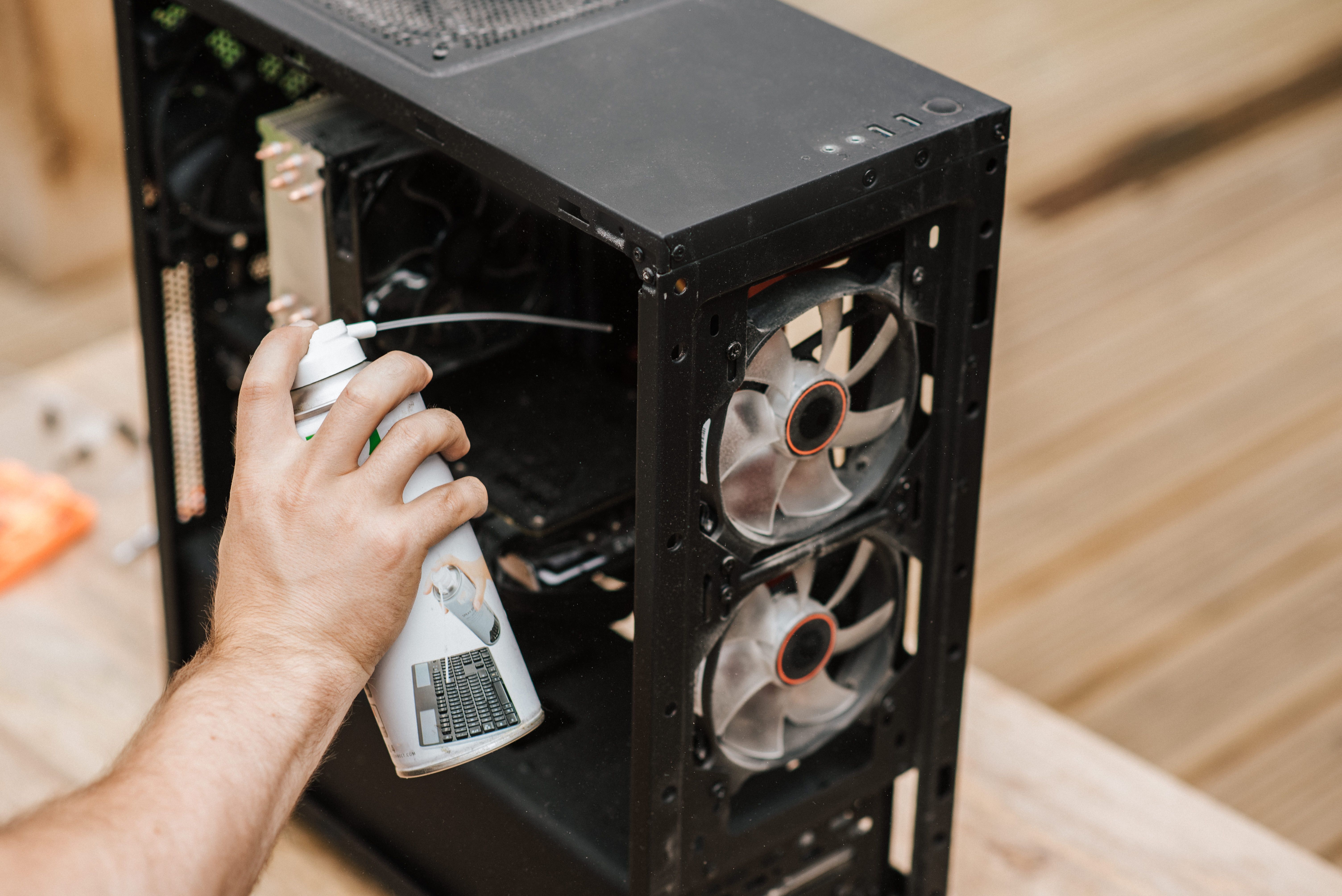
Removing dust from hardware can help maintain airflow and reduce heat-related performance problems.
Malware is less common on Macs than on some other platforms, but it should not be ignored entirely. Unwanted software, adware and rogue browser extensions can consume resources and create noticeable slowdowns. If performance drops suddenly rather than gradually, checking for unfamiliar applications or extensions is worthwhile.
The same principle applies to system errors. A failing SSD, corrupted file system or hardware fault can cause performance issues that ordinary cleaning will not fix. Repeated crashes, unexplained freezes or unusually long startup times may indicate something more serious than normal ageing. In those cases, backing up important data and seeking professional diagnosis is sensible.
How to Identify What Is Actually Slowing Down Your Mac
One of the best ways to understand whether a Mac is genuinely slowing down is to look at patterns. Is the problem constant, or only when certain applications are open? Does performance improve after restarting? Is storage nearly full? Does the slowdown appear after several hours of heavy use? Does the fan run constantly? Those clues help separate software behaviour from hardware limitations.
It is also worth resisting the urge to install so-called optimisation tools that promise dramatic performance gains. Some are useful, but many simply automate tasks that macOS already handles perfectly well. In the worst cases, they add more background activity and make the situation worse rather than better.
A cleaner approach is usually more effective: keep enough storage free, remove software that is no longer used, review login items, keep the system updated appropriately and pay attention to battery and thermal health. Those steps address the most common causes without adding extra complexity.
A slower Mac is therefore not automatically a dying Mac. Performance can decline because the machine is full, overloaded with background tasks, dealing with heavier software or simply being asked to do more than it was several years ago. Understanding which of those factors is responsible makes it much easier to decide whether the right answer is maintenance, a change in working habits or a replacement.
The key is to diagnose before assuming. A machine that feels tired may only need some space clearing and software housekeeping. Equally, there is little value in endlessly optimising hardware that can no longer keep pace with the work being asked of it. Knowing the difference is what turns a vague sense of slowness into a sensible decision about what to do next.